Getting started
Enterprise Account
Manage Your Team with an Organization Account
Prerequisites:
- A Valid Qubrid AI Account logged in the platform
- Qubrid AI Account should be registered with your Organizational Email
- Access to basic details of your Organization
Streamline collaboration with a unified workspace for your entire team. With an Organization Account, you can add users, assign budgets, and track usage - all from one powerful dashboard. Whether you're managing a small team or scaling across departments, take control of your resources and workflows with ease.
Go to Organization Tab from SideBar (Left Menu)
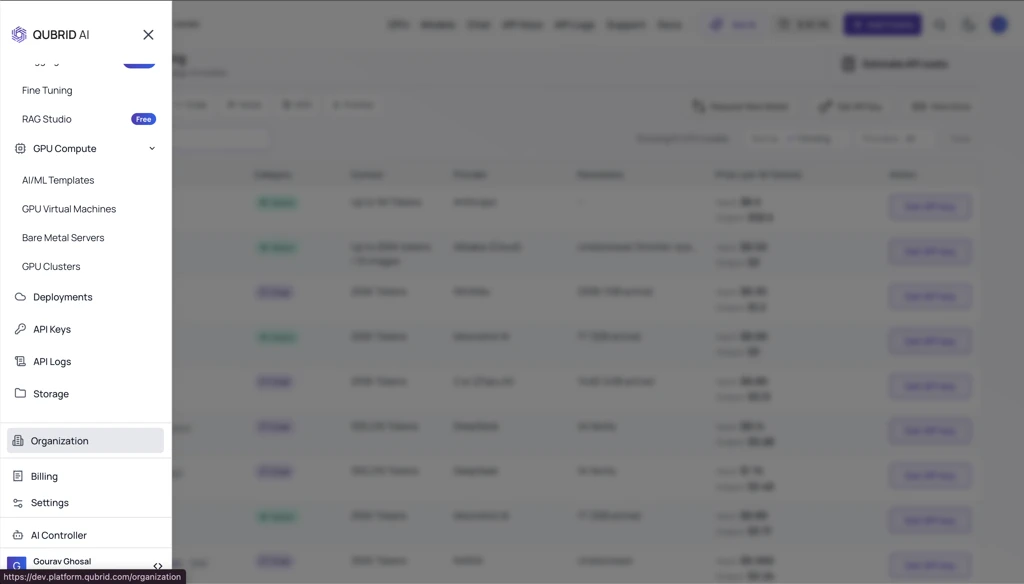
Once you click on it, you will be able to see a new screen (if you don't have an organization created)
Fill in all the fields with accurate details
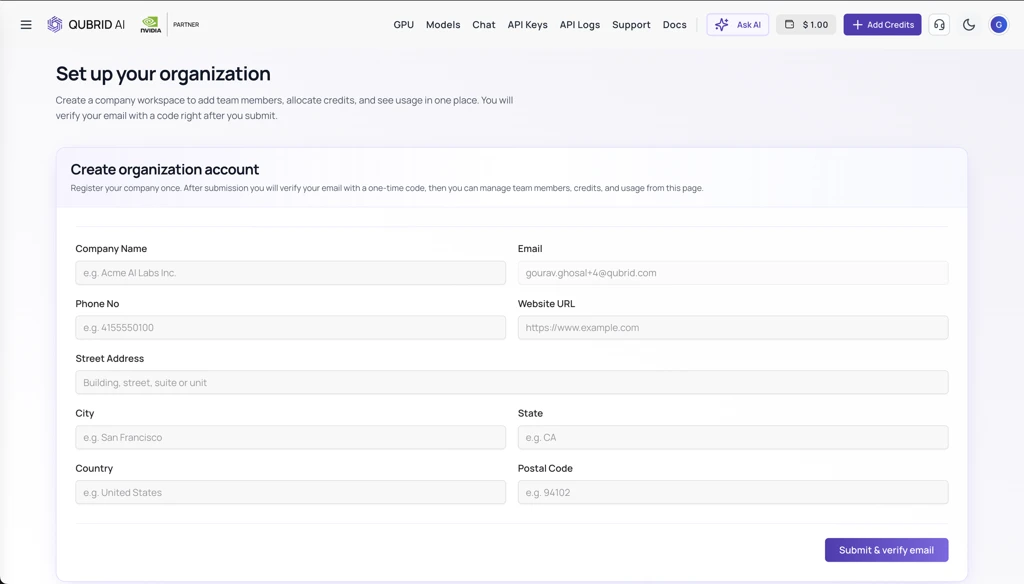
Input basic information like Company Name, Phone Number, Website, Address, City, State, Country & Postal Code
Click on Submit & Verify Email Button
We will be verifying company details and user details and will grant access to resources and credits
Open your mailbox
Find an email that should have come from
digital@qubrid.comTrouble finding the email?
The email would have this subject line
🎉 Welcome to Qubrid AI Enterprise - Empower Your Team! 🚀Find the code in the email
The code will be at the bottom of the email
Copy the Code
Copy & Paste the code in the diaglog box. Click on Submit
Get Access
Once you’ve gained access into the organization with credits, you can see the Team Members List
Users who are registered onto the platform can only be added to organization
Enterprise Account
With Qubrid AI Enterprise, you now have access to powerful tools to manage and optimize your team’s AI initiatives effortlessly:
- Add and manage team members to collaborate efficiently under one enterprise umbrella.
- Adjust budgets and track expenses with complete control over your resources.
- Monitor team activity, including deployed instances and ongoing tasks, in real time.
- Leverage GPU-driven AI tools for rapid model training and deployment.
- Simplify operations with no-code tuning and easy deployment features tailored for enterprise needs.
If any error is encountered during this process, then a popup on the top right will help you understand, what wen't wrong.
Common Errors
On Successful Completion
You will be able to see 3 tabs as follows
Information
Check Organizational Info. Ability to edit & Add Team Members
Billing & Payment
See total Organization Budget. Ability to add & check credits.
Team Logs
Check payment logs for team members. Ability filter data as needed.
Using the Organization Dashboard
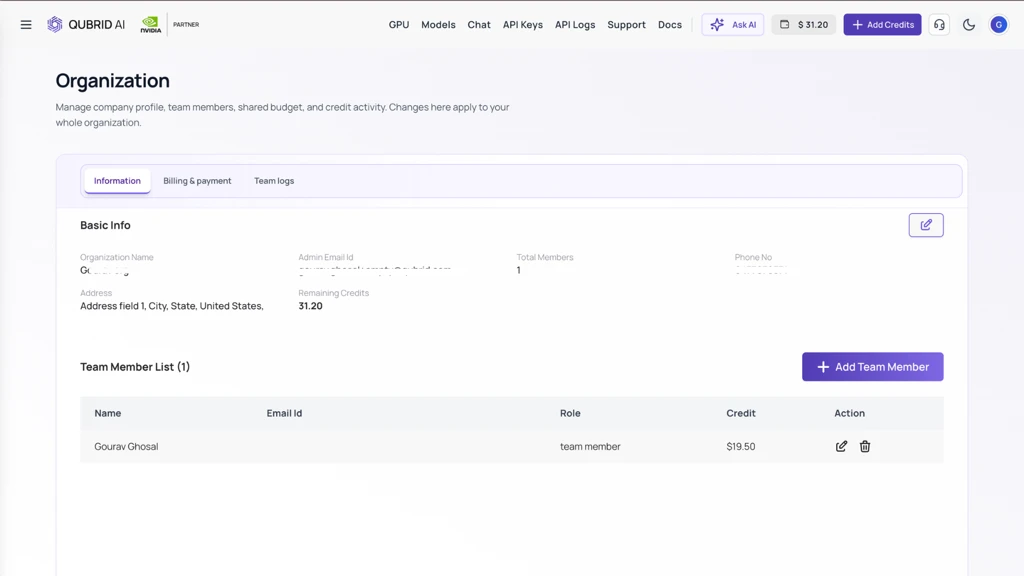
The information tab allows you to check the following:
- Organization Name
- Admin Email Id
- Total Members
- Phone No
- Address
- Remaining Credits
Adding a Team Member
Prerequisites:
- Sufficient credits should be available in the admin account
- Team Member should not be a part of any other Organization on Qubrid AI
Click on the Add Team Member button
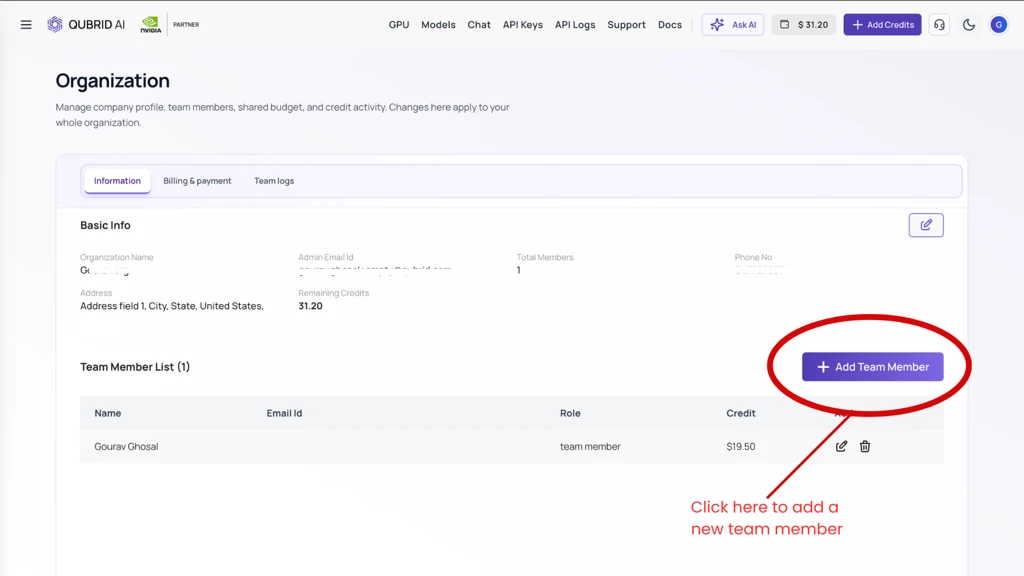 This button will take you to a dialog box for adding more details
Fill in the details
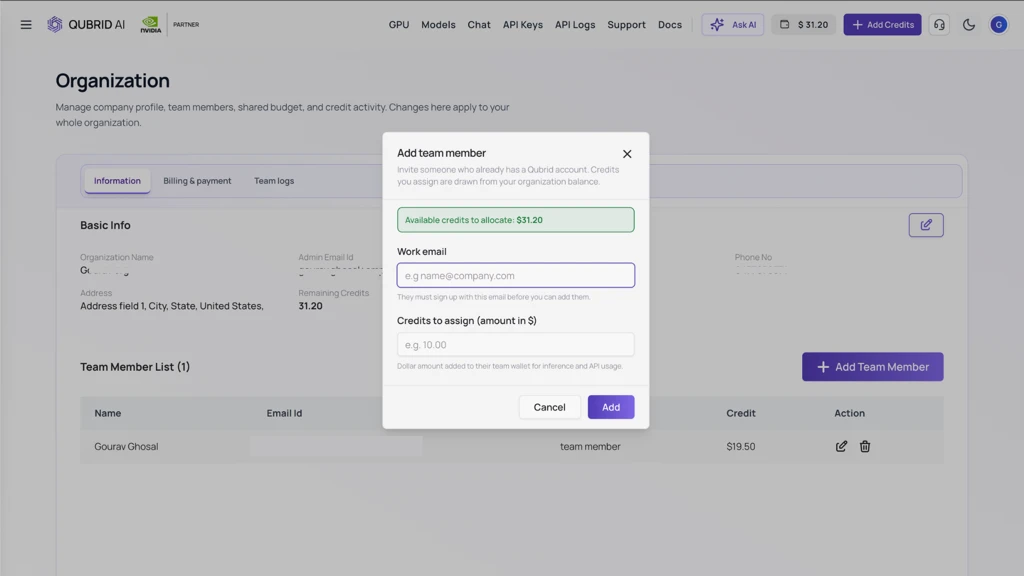 Add details related to the team member you want to add to your Organization. Details include Email & Credits to be assigned
Click the Add button
Once you do this, the team member will be added to your Organization. You can now manage your added team members from here
Removing a Team Member
Prerequisites:
- User should be a part of the Organization
Under the Team Member List, click on the Delete button
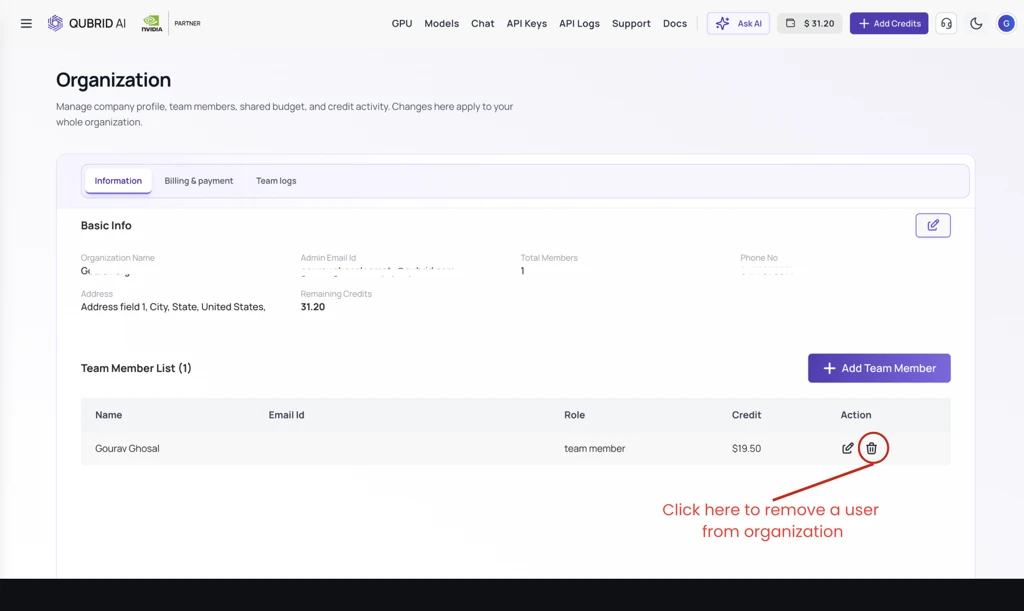 Click on the Delete button for the team member you want to remove from your Organization
Confirm Deletion
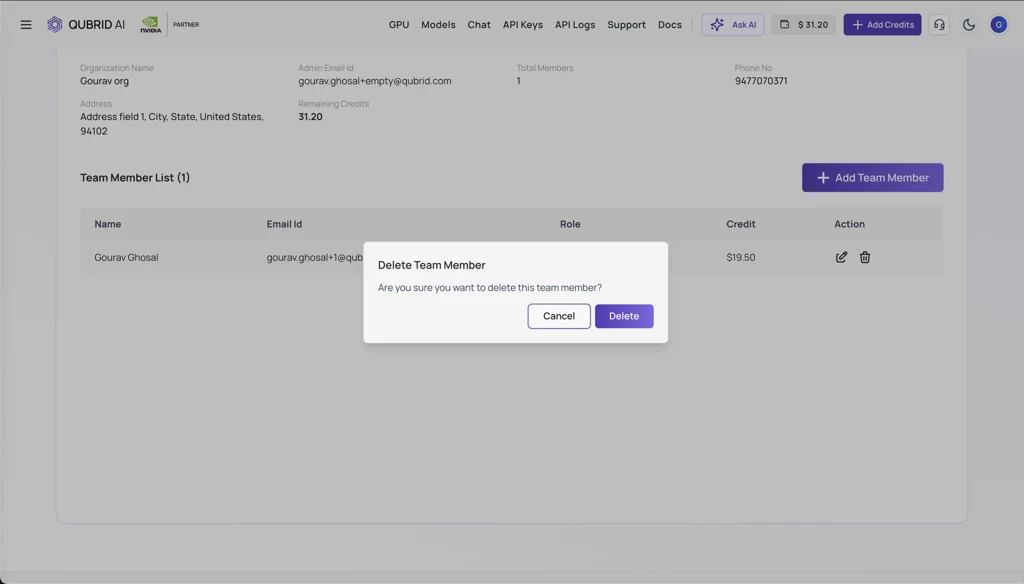 Click on the final "Delete" button in the Dialog Box
Adding Organization Credits
Click on the Billing & Payment Tab
You will be able to see Total Organization Budget & Remaining Budget from here
Click on the Add Credit button
Select from the pre-populated pool of credits or add a custom value
Click on the Continue button
This will take you to the Stripe Checkout Page.
Complete the Payment Details
Choose your currency carefully, keep in mind to crosscheck the Email ID being used, that will be the same Email ID in which the Credits will be added
Click on the Pay button
Once the payment is done, you will be able to see the credits updated in the Organizational Dashboard.
You can now allocate credits to your team members & see the remaining credits as well. For detailed logs of assigning credits / usage, visit the Team Logs Tab
Using Team Logs
You can see the logs of credits assigned to team members, or payment logs from here. Use the filter option to check details on a personalised level.
Click on the Filter button
You will be able to see a dropdown, containing email & type, select your preferred option
Click on the Done button
You will be able to see details specific to the preferred options selected
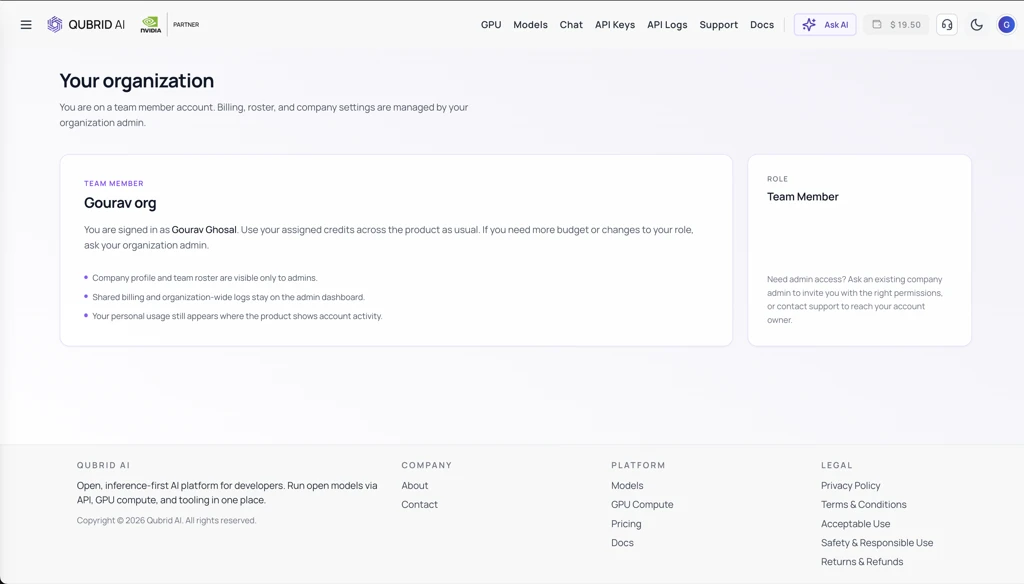
Are you a Team Member?
As a team member currently you will only have access to compute resources with the credits allocated to you. There is no other interaction at an organization level that can be done. For any queries , updates, removals, credits etc. please contact your organization administrator.
We suggest using an admin email to setup your organization, it will help you manage things efficiently & maintain confidentiality.